Your weekly pipeline review starts in Pipedrive Insights. It shows the win rate you set up a report for. The next question is harder: in which stage did you lose the deals that pulled win rate down, and whose deals were they? Answering it means building another report, or exporting deals to a spreadsheet.
Connecting Pipedrive to Claude lets you ask that follow-up in plain English. To get answers you can bring to the meeting, Claude needs your deal data on a schedule, prepared the same way every week.
This guide compares 4 ways to connect them: Coupler.io, Pipedrive’s own MCP connector, a CSV export, and the Pipedrive API. You’ll see the setup for each, 3 pipeline review questions with prompts to paste, and a longer prompt list.
Compare the 4 ways to get Pipedrive data into Claude
Use Coupler.io for recurring pipeline questions, especially when Pipedrive has to sit next to other apps. Use Pipedrive’s MCP connector for quick lookups on current deals and for updating records from Claude. A CSV export fits a one-off question. The Pipedrive API fits a developer who needs a custom metric.
| Method | What data it reaches | Setup effort | Best for | Watch out for |
|---|---|---|---|---|
| Coupler.io | Deals with stages and pipelines, plus Persons, Organizations, Activities, Leads, Products, Files and Call logs, blended with other apps. Claude can also build and change the data flows | Low: no code, from inside Claude or in Coupler.io | Recurring pipeline reviews and questions across several apps | One Pipedrive entity per source; refresh frequency depends on the plan |
| Pipedrive’s MCP connector | Current deals, persons, organizations, leads, activities, products, stages and notes. It can also create and update records | Low: add it from Claude’s connector directory | Quick lookups and updating records from Claude | No tools for Insights reports or goals; Claude works over the records it fetches |
| CSV export and upload | Any list view or data type you can export | None, but export permissions apply | A one-off question on a snapshot | The file is out of date after the next change in Pipedrive |
| Pipedrive API with a script | Everything the API exposes | High: code, hosting and maintenance | Custom metrics and objects | Daily rate limits per plan; you maintain the script |
Connect Pipedrive to Claude with Coupler.io
Coupler.io is a reporting automation platform for business teams. It automatically collects and blends data from 400+ apps and keeps it up to date for your reports and AI. For this pair, its Pipedrive connector pulls your deals on a schedule and gives Claude a data set it can query.
Learn how to connect business data to Claude from other apps too.
You can set it up two ways. Claude can build the data flow from a prompt, or you can set it up step by step in Coupler.io.
Set up from inside Claude
Step 1: Add the Coupler.io connector in Claude
Open the Coupler.io connector in Claude’s directory. Click Add to Claude, then Connect, and sign in to Coupler.io. On a Claude Team or Enterprise plan, an admin has to add the connector first.
Claude builds data flows with the accounts you’ve already connected in Coupler.io. So connect your Pipedrive account in Coupler.io once before you ask (Step 1 of the next section shows how).
Step 2: Ask Claude to build the Pipedrive data flow
Describe the data you want, where it should go, and how often to refresh it:
Create a Coupler.io data flow that sends my Pipedrive deals to Claude. Include all pipelines and deals changed in the last 12 months. Refresh it every day.
Claude finds the Pipedrive connection and sets up the source and the destination. If your request leaves room for interpretation, it summarizes the setup and asks you to confirm first. It doesn't run the new flow on its own: ask it to run the flow when you're ready.
Set up in Coupler.io
Setting up in Coupler.io gives you the most control over what Claude sees: the entity, the filters, the columns and the context.
Step 1: Create a data flow for Pipedrive deals
Start a data flow from the form below: Pipedrive and Claude are already selected. You'll need a Coupler.io account; the free 7-day trial is enough for this guide.

Click Connect, sign in to Pipedrive, and click Allow to give Coupler.io access. Then select the Deals entity. Coupler.io adds the stage and pipeline names to each deal, and it replaces custom field keys with their names.

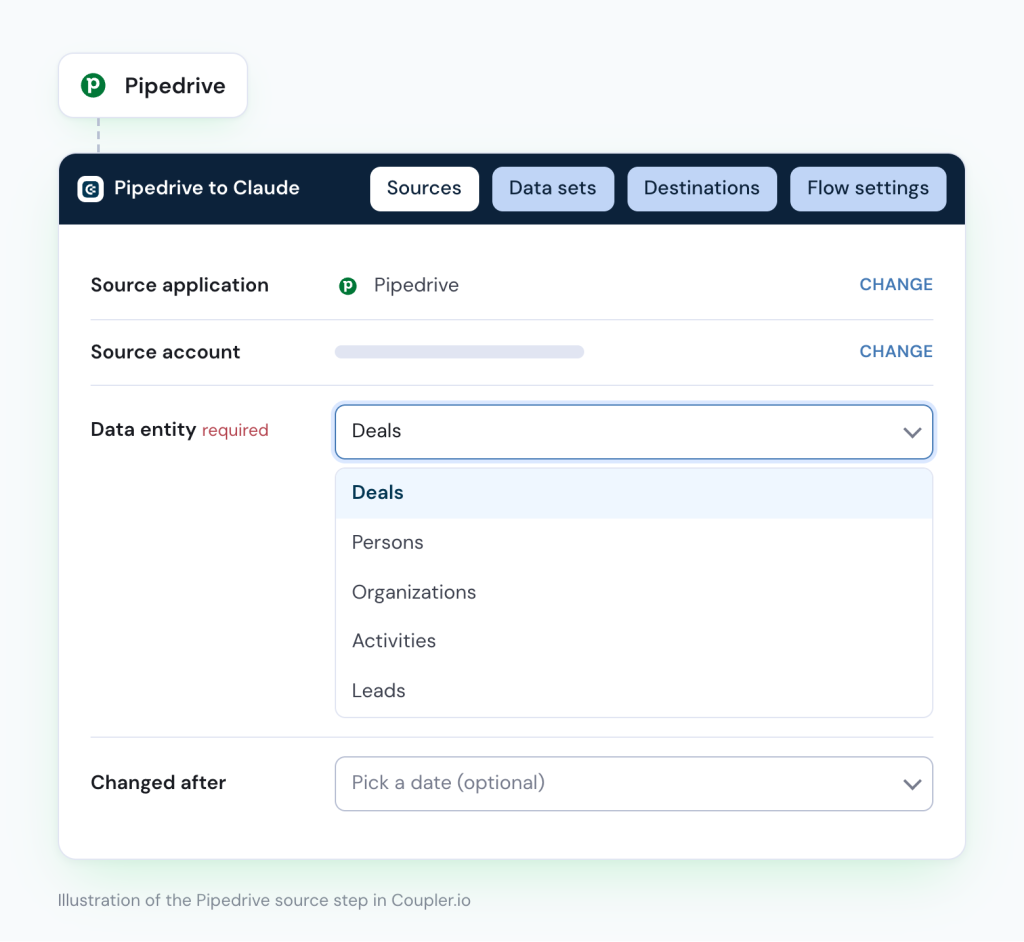
To narrow the data, enter the ID of a filter you saved in Pipedrive, or set the Changed after date. The filter ID is the number after "filter_id=" in the filter's URL in Pipedrive. You can add more sources to the same data flow, for example Google Ads spend or a second Pipedrive account.
Step 2: Organize the data set and add context
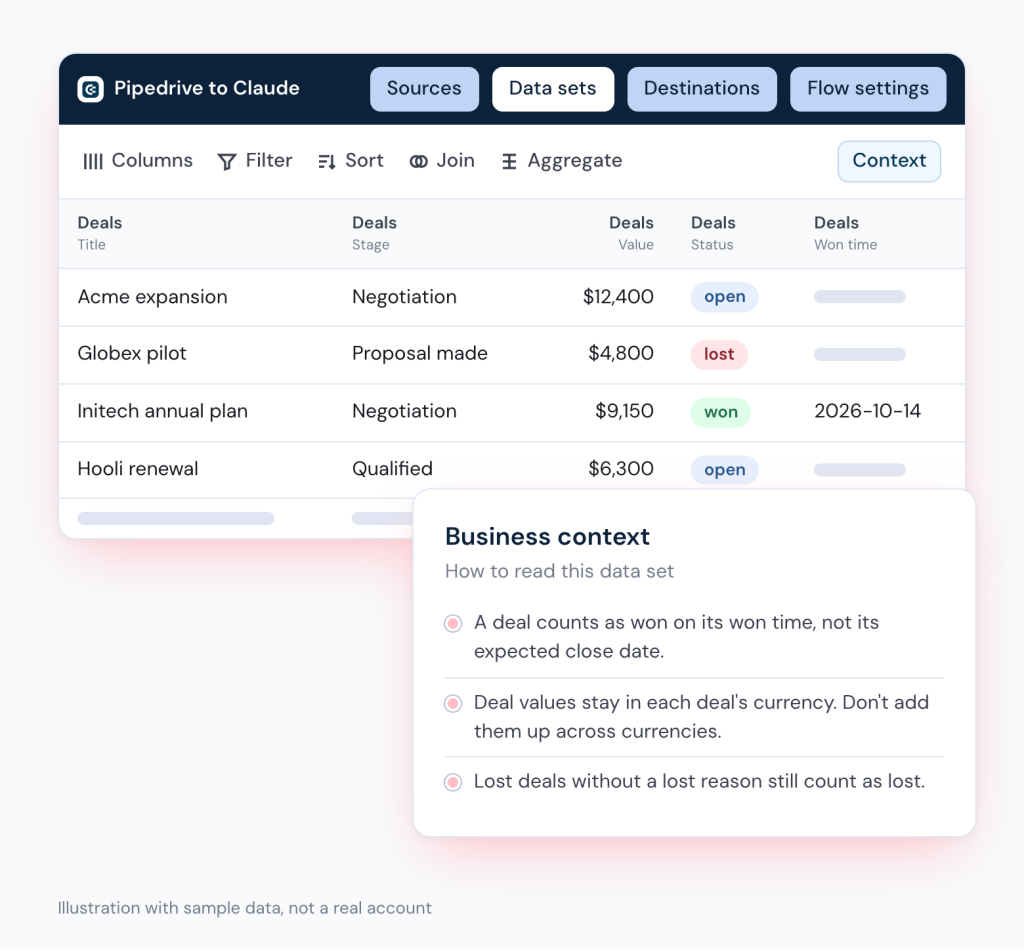
In the data set preview, check the columns, hide the ones Claude doesn't need, and filter rows. If you added Pipedrive Activities as a second source in Step 1, you can join it to Deals on the deal ID.
Then tell Claude what the data means. Coupler.io keeps two layers of context with the data set:
- Data context: a description of each column, its type and units. Coupler.io fills it in, and you can edit it in a column's settings.
- Business context: how to read the numbers. Click Context and write the rules your team uses, or click Generate context with AI and fill in the gaps it marks.
For Pipedrive, state which date counts a deal as won, which currency deal values are in, and whether lost deals with no lost reason count.

Step 3: Connect Claude and set the schedule
In the destination step, choose Claude. Click Get connector to open the Coupler.io connector in Claude, and click Connect. In Claude's Connectors menu, click Connect once more and sign in to Coupler.io. Skip this if you already added the connector in Set up from inside Claude.

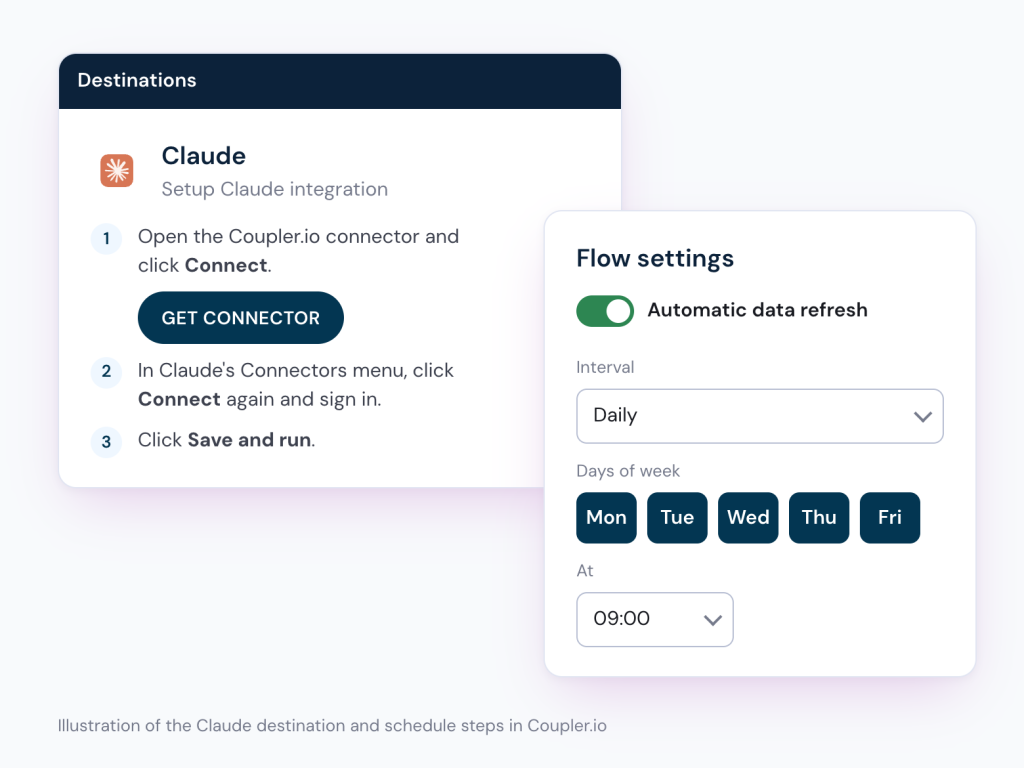
Click Save and run to load the data once. Then open Flow settings, switch on Automatic data refresh, and pick the Interval. Coupler.io refreshes the data set from daily to every 15 minutes, depending on your plan.
Step 4: Ask Claude your first question
Open a new chat in Claude. The first time Claude uses a Coupler.io tool, it asks for permission: choose Always allow. Then start with a question about the whole pipeline:
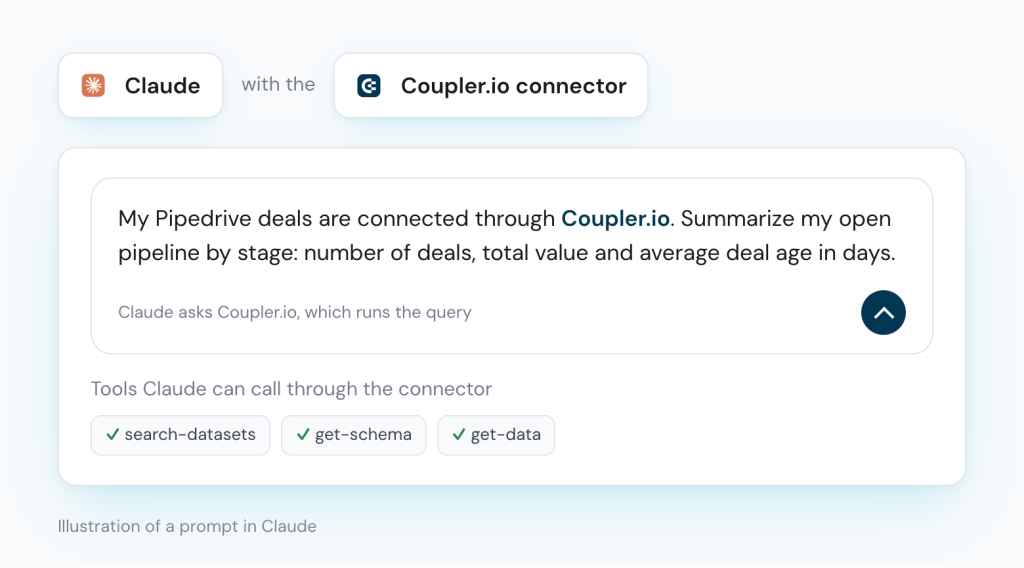
My Pipedrive deals are connected through Coupler.io. Summarize my open pipeline by stage: number of deals, total value and average deal age in days.
Compare the deal counts with your Pipedrive pipeline view. If they differ, check the data flow's filter and date range first. Pipedrive's API returns active records only, while some Pipedrive list views include archived deals.
What Pipedrive data you can connect
Each Coupler.io data flow source pulls one Pipedrive entity. Add several sources to one data flow, or join data sets, when a question needs more than one. These are the entities the Coupler.io Help Center lists:
- Deals: value, currency, status, owner, stage and pipeline, linked person and organization, and custom fields. Start here for any pipeline question.
- Persons and Organizations: contacts and companies with their deal and activity counts and custom fields. Use them to see pipeline by account.
- Activities: calls, meetings, emails and tasks for all users. Use them to compare activity with outcomes per rep.
- Leads: records in the Leads Inbox before they become deals, with owner, status and labels.
- Products: the product catalog with prices and costs, for revenue by product.
- Call logs and Files: call outcomes and durations, and attachment metadata.
Two limits are worth knowing. Pipedrive notes and Insights reports aren't available through this connector. The All deals (BETA) entity needs Pipedrive global admin access.


Analyze your Pipedrive pipeline in Claude
Start your free 7-day trialExamples of a pipeline review in Claude with Pipedrive data
These 3 questions come up in most weekly reviews. Each one has a prompt to paste and the points to check in Claude's answer before you bring it to the meeting.
Find the stage where you lose the most deal value
Insights answers each part in its own report: deal conversion by stage, lost deals by reason. Seeing where value is lost, why, and by whom in one view takes a report you build yourself. Claude can cross the three in one answer.
My Pipedrive deals are connected through Coupler.io. For deals lost in the last 6 months, show how many were lost and their total value in each pipeline stage, the top 3 lost reasons per stage, and which owner lost the most value in each stage.
Lost reasons are free text unless a Deals admin set up a predefined list. If the same reason appears under several spellings, ask Claude to group similar reasons first. A lost deal keeps the stage it was in when it was lost, so the answer shows where each deal stopped.
Compare reps on win rate, deal size and sales cycle
One rep wins most of their small deals. Another wins fewer deals, but larger ones. Side by side, against the team average, the review gets clearer.
My Pipedrive deals are connected through Coupler.io. For deals closed (won or lost) in the last 2 quarters, show for each owner: win rate, average won deal value, and average days from deal creation to close. Compare each owner with the team average and flag the biggest gap.
Check how many closed deals each owner has before you compare rates. An owner with a handful of deals can top or bottom the table by chance. If your team sells in several currencies, ask for deal values per currency, since Pipedrive keeps each deal in its own.
Check whether this quarter's open pipeline is realistic
Open deals with an expected close date in the past stay in the pipeline until someone moves them. They make the quarter look fuller than it is.
My Pipedrive deals are connected through Coupler.io. List open deals whose expected close date has already passed, grouped by owner and stage, with their total value. Then compare open deal value expected to close this quarter with the value won so far this quarter.
The list of overdue deals is your agenda for the meeting: each one needs a new expected close date or a lost reason. The data set is as fresh as its last refresh, so run the data flow before the review if someone updated deals that morning.
Bring your weekly pipeline review into Claude
Start your free 7-day trialClaude prompts for Pipedrive analysis
Paste these into Claude once your data flow has run. The last three need a second data set (Leads, Activities or Products) in the same data flow.
Deals with no next step
My Pipedrive deals are connected through Coupler.io. List open deals with no next activity scheduled, grouped by owner, with deal value and days since the last update. Sort by value.
New pipeline by month
My Pipedrive deals are connected through Coupler.io. Show the value of new deals added each month for the last 12 months, by pipeline. Flag any month that is more than 20% below the 12-month average.
Lead to deal conversion
My Pipedrive leads and deals are connected through Coupler.io. For leads created in the last 6 months, show how many were converted to deals, by lead source and owner, and the won value of those deals.
Activities behind won deals
My Pipedrive deals and activities are connected through Coupler.io. For deals won in the last 2 quarters, show the average number of calls, meetings and emails per deal, by owner. Compare with deals lost in the same period.
Revenue by product
My Pipedrive deals and products are connected through Coupler.io. Show won deal value by product for this year and last year, and list the 5 products with the largest change.
What matters when you connect Pipedrive to Claude
Claude answers well when it knows how your team reads Pipedrive data, and when the numbers come from a calculation it can't skip. These points make the difference.
Define won, lost and deal value once
Pipedrive keeps several dates on a deal: when it was created, its expected close date, and the won or lost time. Deal values stay in their own currencies, while Insights converts won values to your default currency. If Claude picks a different date or adds up mixed currencies, its numbers won't match your Insights reports.
Write these rules in the business context of the data set once. Every Claude chat uses them, and so does every teammate and AI tool connected to the same data. That gives everyone one set of numbers, with the metrics defined once.
The AI asks, Coupler.io calculates
Win rate by owner over 2 quarters means counting hundreds of deals. With Coupler.io, Claude writes the query, Coupler.io runs it on the data set, and Claude gets the computed result. The rows don't have to fit into Claude's context, and each number comes from a query Coupler.io ran.
Through the connector, Claude finds the data set, reads its columns, and asks Coupler.io to run the query.

Put Pipedrive next to your other apps
Pipedrive knows the deals. It doesn't know what each lead cost or whether the invoice was paid. Add Google Ads, Meta, HubSpot marketing data, Stripe or QuickBooks to the same data flow. Claude can then answer cost per won deal or pipeline by campaign in one chat. The same data flow can also feed a Google Sheets report or a Pipedrive dashboard in Power BI.
Change the setup from the chat
Through the Coupler.io connector, Claude can do more than read data. It can find and search your data sets, and join and aggregate them with SQL. It can also create and change data flows, set the schedule, and refresh a flow on demand. Ask it to document a data set, and it saves the business context for the next chat.
Use AI Skills for the review
A skill is a saved procedure Claude follows step by step. Coupler.io's Sales Pipeline Analytics skill reports pipeline health, win rates and rep performance from your CRM data. In Claude, Coupler.io skills appear in the prompt menu. The skill catalog is public, so you can read each one first.
Other ways to connect Pipedrive to Claude
Pipedrive makes its own connector for Claude, and you can also export a file or use the API. Here is how each one works, as of November 2026.
Pipedrive's MCP connector for Claude
Pipedrive MCP is Pipedrive's official connector for AI tools. MCP (Model Context Protocol) is a standard way to connect apps to AI tools like Claude. Pipedrive builds and maintains it, and Claude's connector directory has listed it since August 2026.
- In Claude, go to Customize and select Connectors.
- Search for Pipedrive and click Connect.
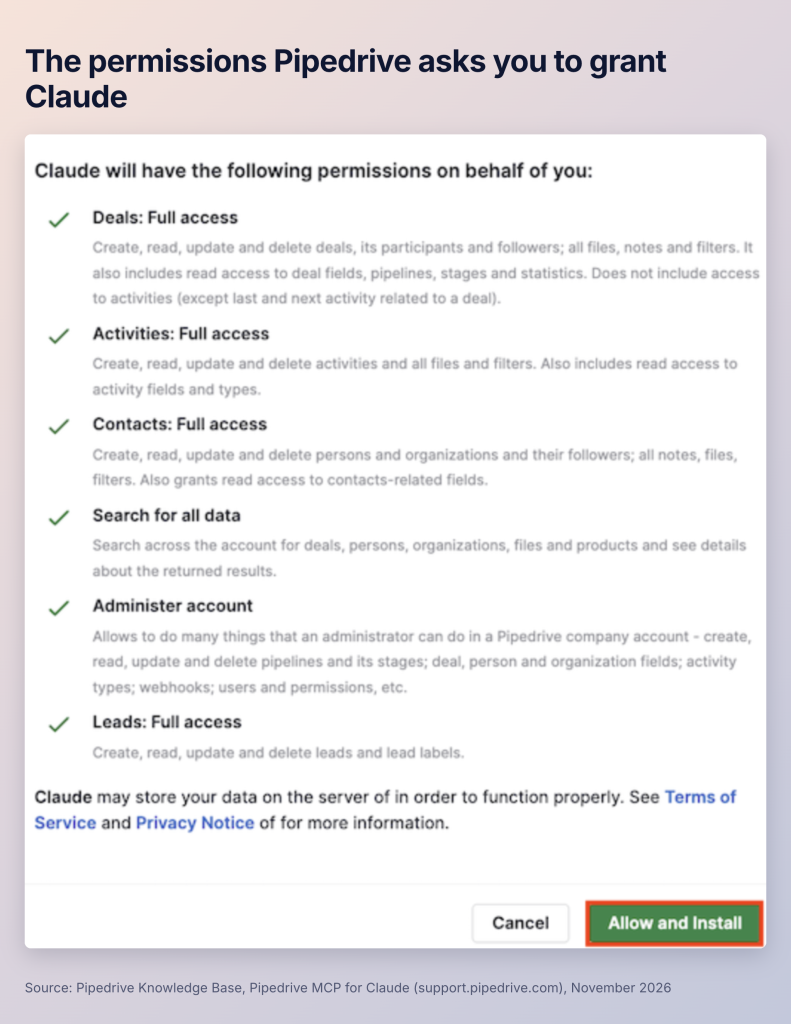
- Sign in to Pipedrive, review the permissions, and click Allow and install.
- Open a new chat and check that Pipedrive is enabled.
- If Claude doesn't see every tool, turn on the setting that loads all available tools in the connector configuration, as Pipedrive's Knowledge Base suggests.
Claude works with current Pipedrive records through the connector's tools. It can fetch and search deals, persons, organizations, leads, activities, products, stages and notes. It can also create and update them: add a deal, log an activity, convert a lead. Claude sees only what your Pipedrive role and visibility settings allow.
When you connect, Pipedrive asks you to grant Claude full access to deals, activities, contacts and leads, and the right to administer the account. Pipedrive's tools list shows no delete tools, and Pipedrive records the connector's actions in the change log.

Pipedrive's tools list has no tools for Insights reports. Pipedrive's skills repository adds that the connector can't see goals or quotas, deal field history, or a deal's full participant list. Pipedrive's MCP page says it's available on every Pipedrive plan, with usage limited by plan token limits. Pipedrive also publishes a Claude plugin with sales skills, such as a pipeline brief and a forecast, built on this connector.
For a quick question about this week's deals, or to update records from Claude, Pipedrive's connector may be enough. For questions across hundreds of deals, several apps, or the same data in Sheets and dashboards, Coupler.io is the better fit. The two work side by side in the same Claude account.
Export Pipedrive data to CSV and upload it
A file upload needs no setup. It works for a single question on the data you have today.
- In Pipedrive, open the account menu at the top right and go to Tools and apps > Export data.
- Pick the data type, such as deals, choose CSV, and click Export.
- Download the file with the cloud icon under Available until in Generated exports.
- In Claude, click +, choose Add files or photos, and upload the file.

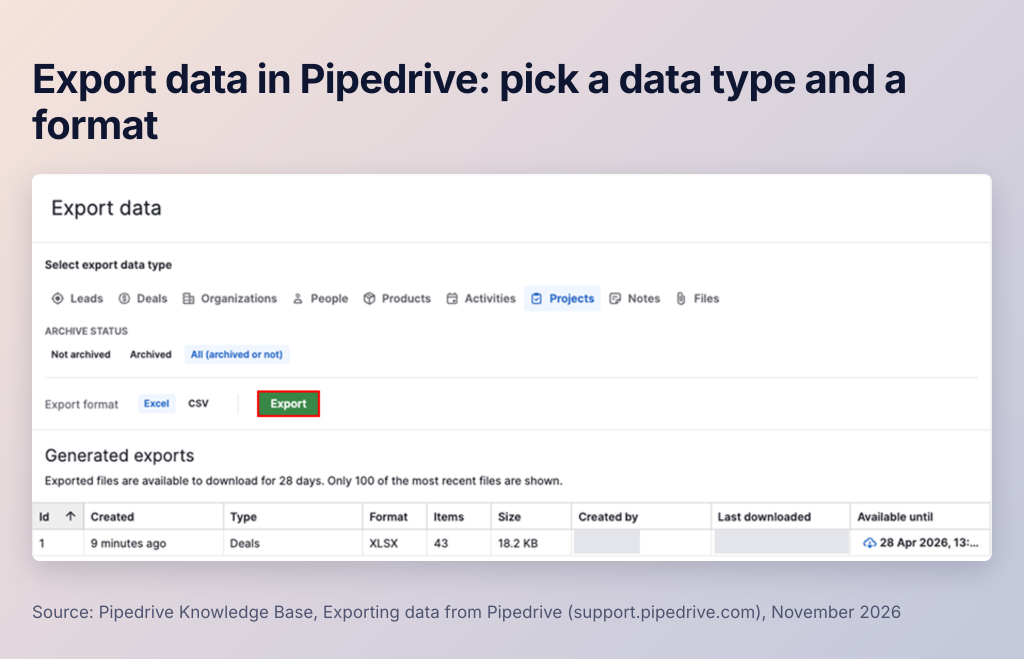
Exporting by data type is for global admins. Other users export a filtered list view with ... > Export filter results, if their permission set includes exporting from list views. Claude accepts CSV files of up to 500 MB in a chat (30 MB in a Project). The file shows Pipedrive as it was when you exported it, and Claude does the math over the rows itself.
Read more about export options in our Pipedrive export data tutorial.
Pipedrive API with a script
The Pipedrive API gives a developer every object and field the API exposes. A script pulls the data, computes your own metrics, and passes the result to Claude through the Claude API or a file.
Authenticate with a personal API token (Settings > Personal preferences > API) or OAuth 2.0. Pipedrive recommends API v2: the deprecated v1 endpoints for deals, persons, organizations and activities have been out of support since August 1, 2026. Each company gets a daily API token budget that depends on its plan and number of seats.
This way makes sense when you need a metric or object no connector covers. You also own the hosting, the error handling, and every change when the API moves. Our Pipedrive API guide covers the basics.
Which way should you choose?
Coupler.io fits any Pipedrive question you'll ask more than once. Pick it for the weekly pipeline review, rep scorecards and forecasts, and whenever Pipedrive has to sit next to ad spend or invoices.
Pipedrive's MCP connector fits quick lookups and record updates on current deals: "what's open with Acme?", "log this call". It's Pipedrive's own tool, and it's a good pair with Coupler.io in the same Claude account.
A CSV export fits a one-off question on a small snapshot, when nobody needs the answer again next week.
The Pipedrive API fits a team with a developer and a metric or object that no connector covers.
Put Pipedrive deals next to ad spend in Claude
Start your free 7-day trialFAQs
Is it safe to connect Pipedrive to Claude?
With Coupler.io, Claude never connects to Pipedrive directly. Coupler.io pulls the data, and you choose which data sets Claude can query. Claude asks Coupler.io, which runs the query and returns the result. There's no write-back into your source systems, so Claude can't change Pipedrive records through Coupler.io. Coupler.io is SOC 2, ISO 27001 and GDPR compliant.
Is there an official Pipedrive MCP server for Claude?
Yes. Pipedrive MCP is made by Pipedrive and listed in Claude's connector directory as "Pipedrive" since August 2026. It connects with your Pipedrive login and works with current records: it can search, create and update deals, contacts, leads and activities. You add it from Customize > Connectors in Claude.
Can I use Coupler.io and Pipedrive's connector together?
Yes. Both are connectors in the same Claude account, and Claude picks the tools that fit the question. A common split: Coupler.io for analysis across many deals and other apps, Pipedrive's connector for looking up one deal or logging an activity.
Can I combine Pipedrive with other apps in one answer?
Yes, with Coupler.io. Add Google Ads, Meta, HubSpot, Stripe or any of the other sources to the same data flow, and blend them before the data reaches Claude. See our guides to connect HubSpot to Claude and connect Salesforce to Claude for other CRMs.
Does it work in Claude web, desktop and mobile?
Yes. The Coupler.io connector is a web connector. You install it once, and it works in Claude on the web, Claude Desktop, the mobile apps, Cowork and Claude Code.
Which Claude plan do I need?
Connectors from Claude's directory are available on every Claude plan. On Team and Enterprise plans, an Owner or Primary Owner has to enable a connector before members can connect it. The Coupler.io Help Center notes that on the Free and Pro plans the connector's tools may not load. If that happens, add Coupler.io as a custom connector, as the Help Center describes.